GoHighLevel Workflow Automation Setup: A Complete Step-by-Step Guide
TL;DR: GoHighLevel workflow automation lets you automate lead responses, follow-ups, appointment reminders, and more using a visual builder. This guide covers everything from trigger and action types to building your first workflow using our proprietary GHL Workflow Builder Blueprint — a 6-step methodology that ensures reliable, high-performing automations every time.
Why GoHighLevel Workflow Automation Matters
Speed is everything in modern lead generation. Studies show that leads contacted within 5 minutes have a 32% close rate — 21 times more likely to qualify than those contacted after 30 minutes. Yet the average B2B lead response time is 42–47 hours. Worse, only 23% of businesses respond within that critical 5-minute window.
GoHighLevel bridges this gap. With 120,000+ customers supporting over 1 million SMBs across 150+ countries, GHL has become the dominant all-in-one platform for agencies and marketers. Its Workflow Builder automates the repetitive tasks that kill productivity — sending SMS and email follow-ups, updating contact records, scoring leads, booking appointments, and more.
The marketing automation market is valued at $8.44 billion in 2026 and projected to reach $21.7 billion by 2032. If you're running a marketing agency or managing client campaigns, mastering GoHighLevel workflow automation setup isn't optional — it's a competitive necessity.
What Is GoHighLevel Workflow Automation?
GoHighLevel's Workflow Builder is a visual, trigger-based automation engine. You define a trigger (an event that starts the workflow), add optional filters (conditions that must be met), and chain actions (what happens next). The engine processes contacts through your workflow in real time, with built-in If/Else branching, drip mode pacing, and Go-To connections for complex logic.
When GoHighLevel deprecated its old Campaigns + Triggers system, the unified Workflow Engine became the standard. Today, it offers 89 trigger types across 14 categories and 60+ action types across 14 categories — more than enough to build virtually any marketing automation sequence.
The GHL Workflow Builder Blueprint
After building hundreds of workflows across dozens of agencies, we've developed a repeatable methodology. We call it The GHL Workflow Builder Blueprint — six steps that take you from idea to live automation:
- Map the Contact Journey — Document every touchpoint from first contact to conversion
- Pick Your Trigger — Choose the exact event that starts the workflow
- Set Entry Filters — Prevent false starts by defining who qualifies
- Build the Action Chain — Sequence every email, SMS, tag, and delay
- Add Conditional Logic — Use If/Else branches for different outcomes
- Test Before Activating — Walk through with test contacts and validate
Let's apply this blueprint step by step.
Prerequisites: Before You Build
Before you open the Workflow Builder, get these foundations right:
- Clean up your tags — Inconsistent tagging breaks workflow filters
- Set up custom fields — Define the data points your workflows need
- Configure pipelines and stages — Workflows that manage opportunities depend on clean pipeline structure
- Verify email sending — Set up DMARC, SPF, and DKIM records for reliable email delivery
- A2P 10DLC registration — For SMS workflows, ensure your brand is registered
Skipping these steps leads to broken workflows and missed opportunities. Invest the 30 minutes upfront.
Step 1: Map the Contact Journey
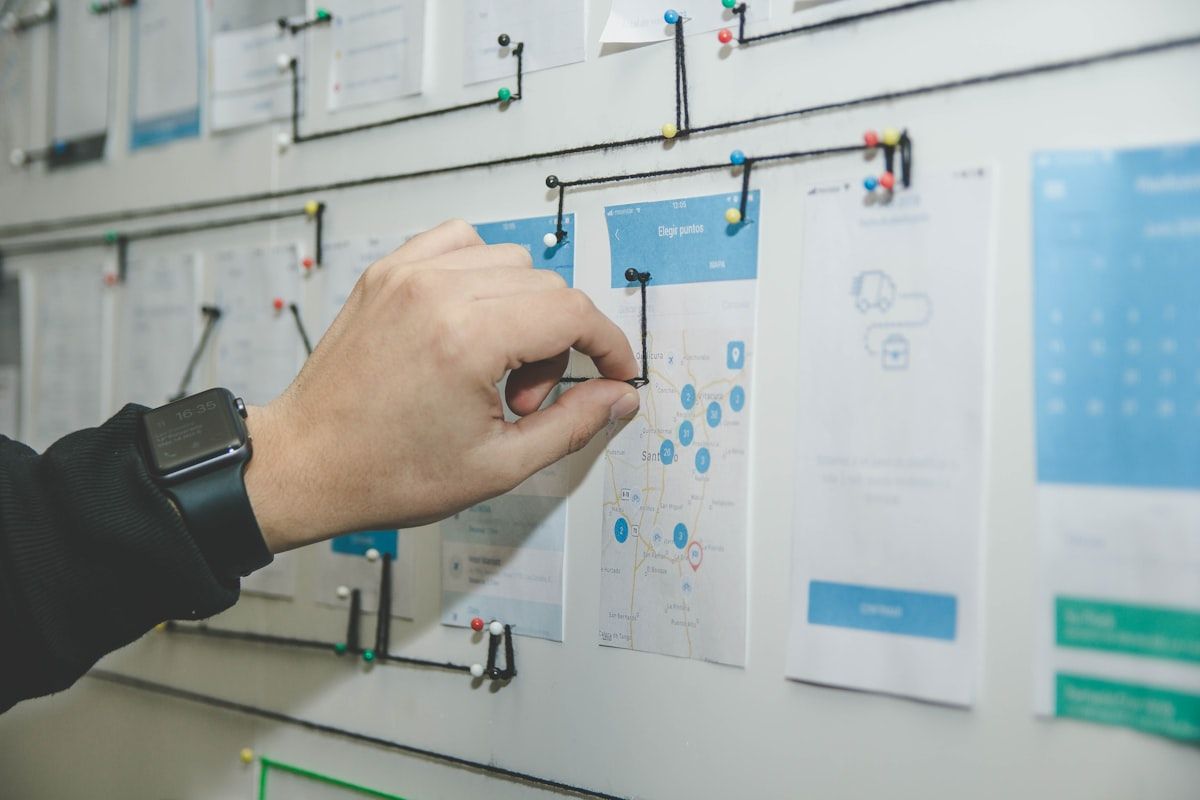
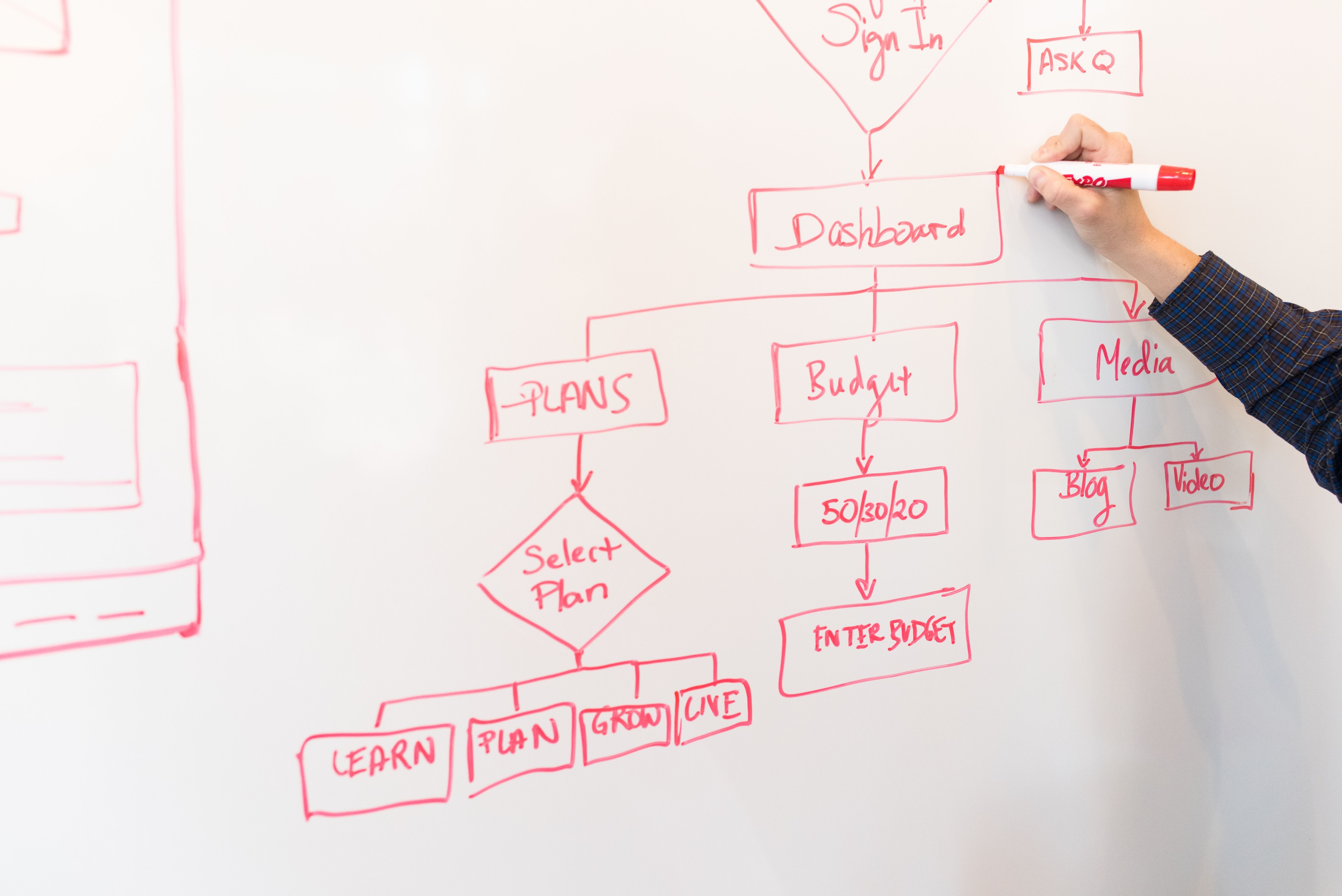
Every great workflow starts with a map. Grab a whiteboard or a document and trace what happens when a lead enters your system:
- Where do they come from? (Facebook Lead Form, website contact form, inbound call)
- What happens immediately? (SMS confirmation, email receipt)
- What happens if they don't respond? (24-hour follow-up, 72-hour final attempt)
- What happens if they do respond? (tag change, pipeline move, human assignment)
For this guide, we'll build a Speed-to-Lead Workflow — the highest-ROI automation you can create.
Step 2: Pick Your Trigger
GoHighLevel offers 89 trigger types divided into 14 categories. For lead response automation, the most common triggers are:
| Category | Trigger | Best For |
|---|---|---|
| Contact | Contact Created | New lead enters the system |
| Events | Form Submitted | Lead fills out a website form |
| Events | Facebook Lead Form | Facebook ad lead generation |
| Events | Inbound Webhook | Custom integrations or third-party tools |
| Events | Funnel/Website PageView | Lead visits a specific page |
| Appointments | Appointment Status | Reschedules or cancellations |
| Payments | Invoice Sent/Paid | Post-purchase follow-up |
For our Speed-to-Lead workflow, use Contact Created — it fires the moment a new lead enters your CRM.
Step 3: Set Entry Filters
Filters prevent your workflow from running on the wrong contacts. Common filters include:
- Contact Tag — Only run when specific tags are present
- Custom Field Value — Filter by lead source, service interest, or budget range
- Contact Type — Separate leads from existing customers
For Speed-to-Lead, add a filter for Source (e.g., "Facebook Ads" or "Website Form") so your response messaging matches where the lead came from.
Step 4: Build the Action Chain
GoHighLevel supports 60+ action types. For our Speed-to-Lead workflow, the chain looks like this:
- Send SMS — Immediately: "Hey [First Name], thanks for reaching out! We'll connect you with our team shortly."
- Send Email — Immediately: Confirmation with next steps and your calendar link
- Add Tag — "needs-call-back" for internal tracking
- Update Custom Field — Set "Lead Response Status" to "Auto-Responded"
- Assign Contact — Route to the appropriate team member (or leave unassigned if your team picks from a queue)
- Wait — 24 hours
- If/Else Branch — Check if lead has been contacted (is "Contacted" tag present?)
- If Yes: End workflow
- If No: Send follow-up SMS + email, then wait 48 hours, then send final follow-up
This is where GoHighLevel's Drip Mode shines — it paces your actions so contacts receive messages at natural intervals, not all at once.
Step 5: Add Conditional Logic
The If/Else action supports up to 10 branches and evaluates conditions in real time. For Speed-to-Lead, your conditions should check:
- Has the lead responded to any SMS or email? → If yes, switch to a human conversation workflow
- Has the appointment been booked? → If yes, send confirmation and end the automation
- Has 72 hours passed without any response? → If yes, send a "Should we close this out?" message
Conditional logic is what separates basic automation from smart automation. Without it, you're just blasting messages.
Step 6: Test Before Activating
GoHighLevel's Advanced Builder includes:
- Stats Mode — See how many contacts are in each step of your workflow
- Highlight Contact Path — Visually trace a specific contact through every action
- Error Detection — Validates your workflow on save, catching issues like missing fields or broken branches
- Workflow Comments — Leave notes for your team on complex actions
To test: create a test contact, push them through the workflow trigger, and use Highlight Contact Path to verify every step fires correctly. Fix any issues before going live.
3 Essential Workflows to Build
1. Speed-to-Lead Workflow
As described above. This single workflow can increase your close rates by 3x and is the highest-priority automation for any agency.
2. Appointment No-Show Prevention
- Trigger: Appointment Status → Scheduled
- Actions: Send SMS reminder 24 hours before, then 2 hours before
- Condition: If appointment status changes to "Cancelled," trigger a rebooking sequence
- Result: Studies show automated reminders reduce no-shows by up to 40%
3. Stale Lead Reactivation
- Trigger: Custom Date Reminder (set for 30 days from creation)
- Filter: No "Opportunity" created and no recent activity
- Actions: Send personalized re-engagement email, followed by SMS, then remove from active list
- Result: Recover leads that would otherwise go cold forever
Advanced Builder Features Worth Knowing
The Advanced Builder (activated via the toggle in the top-right of the Workflow Builder) gives you a visual freeform canvas where you can:
- Drag and drop actions anywhere on the canvas for better visualization
- Create delinked parallel branches — multiple actions that fire simultaneously without a parent-child relationship
- Use Go-To connections — Jump from any action to any other action, creating loops or skipping steps
- Add Sticky Notes — Document rationale inline for team members
- Copy/paste across workflows — Reuse proven action chains without rebuilding
For complex workflows, the Advanced Builder is a game-changer.
The AI Builder: Describe, Don't Click
In 2025, GoHighLevel launched its AI Builder for workflows. Instead of dragging and dropping actions, you can describe your workflow in plain English. For example:
"When a new contact is created from a Facebook Lead Form, send an immediate SMS and email. Wait 24 hours. If they haven't replied, send another SMS."
The AI generates a complete workflow in 5–10 seconds. You can then edit it in the visual builder, add conditions, or regenerate. With OpenRouter integration supporting 300+ AI models (Claude, OpenAI, Gemini, Perplexity), you can even power workflow decisions with AI.
GoHighLevel vs. Competitors: Workflow Automation Compared
| Feature | GoHighLevel | HubSpot | ActiveCampaign | Systeme.io |
|---|---|---|---|---|
| Starting Price | $97/mo | $20/mo (per seat) | $29/mo | $27/mo |
| Trigger Types | 89 | ~50 | ~40 | ~20 |
| Action Types | 60+ | ~80 | ~70 | ~30 |
| Visual Builder | Yes (Advanced Canvas) | Yes | Yes | Basic |
| AI Builder | Yes (plain English) | No | No | No |
| OpenRouter AI Models | 300+ | Limited | Limited | No |
| If/Else Branches | Up to 10 | 2 | 2 | 1 |
For pure workflow automation power, GoHighLevel's 89 triggers and AI Builder give it a clear edge — especially for agencies managing multiple clients.
FAQ
How do I prevent duplicate workflow executions on the same contact?
GoHighLevel automatically tracks which contacts have entered each workflow. You can also add a "Remove from Workflow" action at the end, and use entry filters like "Tag does not exist" to prevent re-entry.
Can I import workflows from one GoHighLevel sub-account to another?
Yes. Use the Export/Import feature in the Workflow Builder. This is a massive time-saver for agencies onboarding new clients with similar automation needs.
What happens if a trigger action fails (e.g., an SMS doesn't send)?
GoHighLevel's Error Detection flags failed actions in the workflow logs. You can set up error handling paths using the "Send Data via Webhook" action to notify your team when something goes wrong.
How many workflows can I have active in a sub-account?
There is no hard limit, but best practice is to keep it under 50 active workflows per sub-account for maintainability. Archive workflows you no longer use.
Does GoHighLevel support time-zone-sensitive delivery?
Yes. Use the Drip Mode action with timezone detection enabled to ensure messages arrive during business hours in the contact's local time zone.
Ready to Automate Your Lead Response?
Setting up GoHighLevel workflow automation is one of the highest-leverage investments you can make in your marketing operations. A well-built Speed-to-Lead workflow alone can multiply your close rates, recover leads that would otherwise go cold, and free your team to focus on closing deals instead of sending repetitive messages.
[Book a GHL Setup Consultation] — Let our team build your workflows for you [Download Workflow Templates] — Get pre-built Speed-to-Lead, No-Show Prevention, and Stale Lead Reactivation workflows
Learn more about GoHighLevel Automation on our pillar page.
Word count: ~2,150
Turn the note into a working system.
If your account is half-configured, over-automated, or creating backend drag, TkTurners can rebuild the structure around how your team actually books, follows up, and closes.
See our GoHighLevel servicesHammad
Operations Automation Specialist
Hammad writes from the implementation side of operations automation, especially where teams need cleaner workflows across CRM, ecommerce, reporting, and internal tools.
Relevant service
See GHL services
Explore the service lane