TL;DR: When a product goes out of stock on your storefront or marketplace but your ERP never registers the event, the root cause almost always lives in one of four layers: the storefront feed configuration, the middleware/integration connector, the ERP webhook or listener setup, or the inventory threshold rule. Work through this four-layer checklist before you open a ticket — in most cases, you'll find the gap yourself in under 20 minutes.
You check your Amazon seller dashboard and realize a SKU went out of stock three hours ago. You check your ERP. Nothing. No trigger, no flag, no exception log. Your team is flying blind on whether the rest of the catalog is in sync or if this is the first sign of a bigger feed failure.
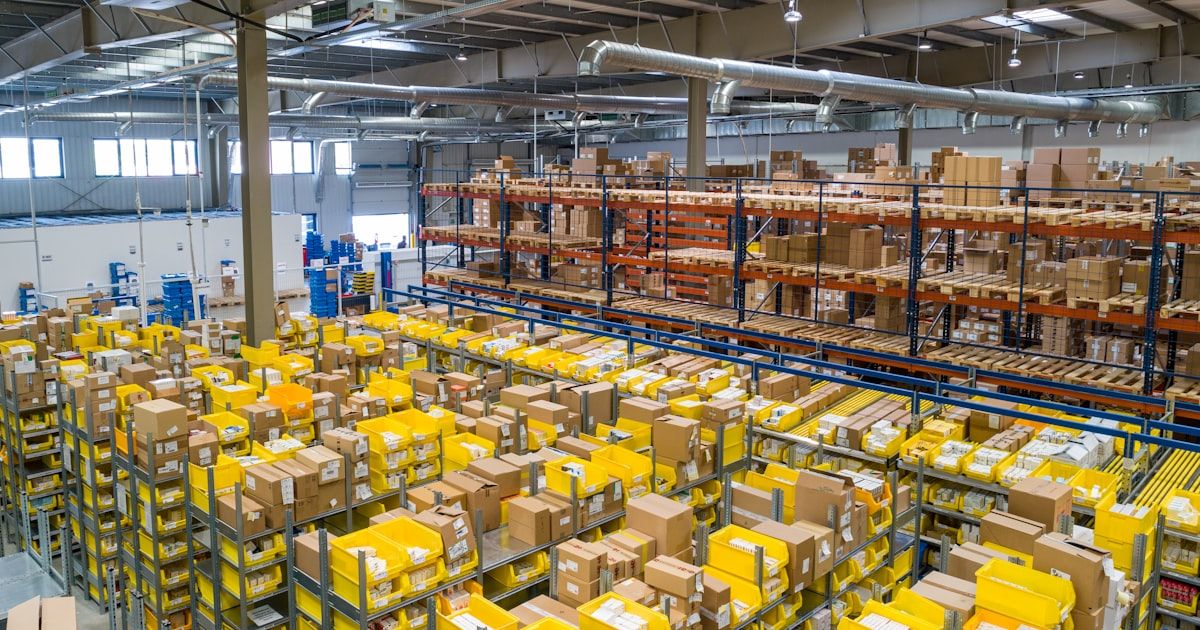
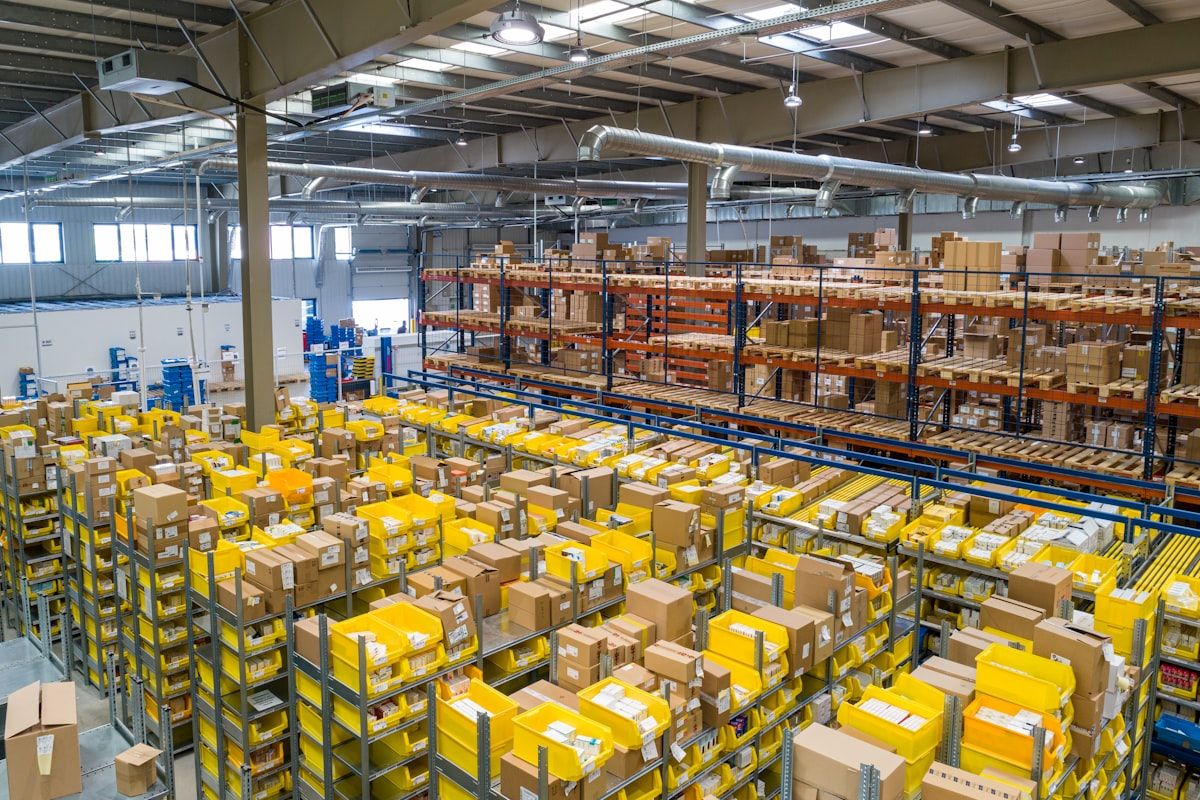
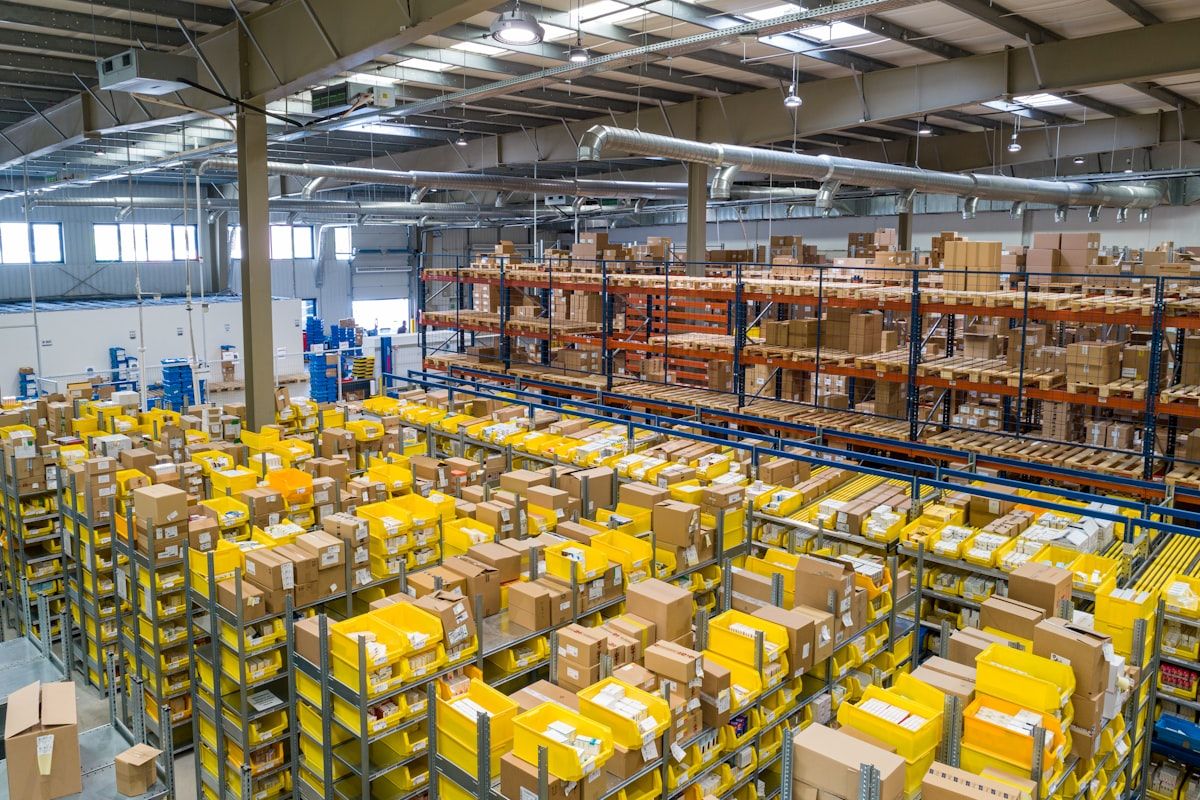
This is one of the most common operational blind spots in omnichannel retail. Your storefront knows the product ran out. Your marketplace listing reflects that accurately. But your ERP — the system your finance team, your buyers, and your reorder logic depend on — never got the message.
The gap isn't magic. It's almost always one of four layers. This checklist walks you through each one in order, so you can isolate the failure point and decide whether you can fix it yourself or whether it's time to escalate — with evidence, not a guess.
Work through the four layers in order. Most issues are caught in Layer 1 or Layer 2.
Why Out-of-Stock Events Get Lost Between Your Storefront and ERP
Multi-channel retail stacks create inherent translation layers between your storefront, your marketplace feeds, your middleware or integration connector, and your ERP. Each layer is a translation point — and each translation point is a place where an event can get dropped, filtered, or misrouted.
The hardest part isn't fixing the gap once you find it. It's knowing which layer to check first.
In most omnichannel setups, out-of-stock ERP trigger failures fall into one of four layers:
- The storefront feed configuration — whether the platform is set to push inventory events at all, and under what conditions.
- The marketplace feed and channel listing — whether the out-of-stock is a channel-level suppression or a true inventory event.
- The middleware or integration connector — the pipeline between your storefront and your ERP, which includes most third-party tools like Celigo, Patchworks, Boomi, or native platform connectors.
- The ERP webhook or listener and inventory threshold rule — the configuration inside your ERP that determines whether an inbound event actually fires a transaction.
One more thing that trips up operators: most inventory sync failures are silent. The event fires. The system processes it. But somewhere in the chain, it gets dropped without an error message. Your ERP doesn't log a failure — it simply never registers the event. That's why the assumption "the ERP should have gotten it" is the first thing to challenge when you're debugging.
70% of inventory sync failures are silent. The event fires, but the ERP never receives or processes it. Your first job is to prove where in the chain the event died — not assume it was the ERP's fault.
The Four-Layer First-Response Checklist
Work Layer 1 through Layer 4 in order. Most issues are caught in Layer 1 or Layer 2 without IT involvement. Only escalate to Layer 4 when Layers 1–3 are cleared.
Layer 1 — Storefront Inventory Feed
Start here. Your storefront is the system of record for what the customer sees. If this layer is correct, you move down. If it isn't, you've found your problem.
- Is the specific SKU flagged as "out of stock" in the storefront admin — not just the channel listing?
- Is the storefront inventory feed set to "continue" or "stop" when quantity reaches zero?
- Check the storefront's last inventory sync timestamp. Is it recent? If sync runs hourly and you have a gap, that explains the delay.
- Are there any bulk edit holds, inventory freeze flags, or staging-mode settings on this SKU in the storefront?
- Did a promotions rule, clearance override, or manual adjustment temporarily set quantity to 0?
Diagnosis cue: If the storefront shows the correct inventory state — and it genuinely is out of stock at the source — move to Layer 2.
Layer 2 — Marketplace Feed and Channel Listing
The out-of-stock might be a channel-level suppression, not a true inventory event. These behave differently and require different fixes.
- Is the out-of-stock appearing on a specific marketplace (Amazon, Walmart, eBay) or across all channels?
- Check the marketplace's last inventory update feed timestamp. Does it match the storefront's last sync time?
- Is the marketplace listing pulling from the storefront's native inventory feed, or is it fed through a third-party repricer or channel manager?
- Check whether the listing was suppressed or hidden by a buybox winner algorithm — not a quantity issue at all. Amazon sometimes suppresses listings for competitive reasons even when inventory is positive.
- Verify the marketplace's inventory buffer settings. Some marketplaces auto-suppress at Qty 0; others suppress at Qty 1 if a buffer of 1 is configured.
Diagnosis cue: If all marketplaces are in sync but your ERP is not, the feed is working correctly. The issue is in Layers 3 or 4.
Layer 3 — Middleware and Integration Connector
This is where most silent failures live. Pull logs before you assume anything.
- Pull middleware logs for the past 24 hours. Search for the SKU and any error, warning, or dropped event flags.
- Check whether the middleware connector (Celigo, Patchworks, Boomi, or your native connector) has a "suspended" or "paused" status on the integration flow. Credential rotations, API limit breaches, and failed health checks can put a flow into a suspended state without generating an alert.
- Verify the middleware's inventory event subscription. Is it listening for the correct event type — quantity update, not order receipt? Mixing these up is more common than you'd think.
- Check for any recent middleware updates, app upgrades, or credentials rotations that may have silently broken the outbound connection to your ERP.
- Audit the SKU mapping in the middleware. Is this SKU mapped correctly, or does it have a null mapping, a override, or a disabled flag?
Diagnosis cue: If middleware logs show the event was received but not forwarded to the ERP, the connector configuration is your culprit. If logs show no event was received at all, the issue is upstream in Layer 1.
Layer 4 — ERP Inventory Trigger and Webhook Configuration
If you've cleared Layers 1–3, the problem is here. ERP-side configuration issues are the most common escalation cause — and the most preventable with a pre-flight checklist.
- Check the ERP's inventory webhook or listener configuration. Is it active and pointed at the correct endpoint?
- Verify the ERP's inventory trigger rules. Many ERP systems allow you to set a minimum quantity delta to fire a transaction — for example, the event only fires if quantity drops by 10 units or more. If your trigger threshold is 10 and you went from 11 to 0, the event fires. But if you went from 5 to 0, it might not.
- Audit the ERP's inventory item record for this SKU. Is it set to "inventory item" or "non-inventory item"? Only true inventory items trigger inventory transactions. Non-inventory items are invisible to the ERP's trigger system.
- Check whether the ERP has a workflow or approval queue holding the inventory transaction for manual review before it posts.
- Verify the ERP's integration user still has write permissions. A password reset or permission change can silently break inbound webhook processing without generating a visible error.
Diagnosis cue: If Layers 1–3 are cleared and the ERP still shows no event, this is an IT-level configuration issue. Document your evidence package before escalating.
Platform-Specific Patterns: Shopify, NetSuite, and the Major Marketplaces
Specific platform combinations have predictable failure modes. Knowing your stack narrows the diagnosis fast.
Shopify + NetSuite: Shopify's inventory level API pushes per-location quantity. If the NetSuite connector maps to the wrong Shopify location — a dropship location instead of the fulfillment center, for example — NetSuite never sees the zero-quantity event. Check your connector's location mapping table first. This is the top Shopify-NetSuite integration failure pattern we see in the field.
Amazon + Microsoft Dynamics 365 Business Central: Amazon's "Out of Stock" status is a listing state, not an inventory state. Business Central typically syncs on inventory transactions, not listing state changes. If your integration is only listening for inventory transactions, a suppressed Amazon listing can go dark without triggering anything in Business Central. A separate Amazon listing suppression flow may be needed to close this gap.
Walmart Connect + NetSuite: Walmart's inventory feed requires a minimum on-hand quantity to publish a listing. If the NetSuite item record is set to "do not stock" or has a zero default, the Walmart feed will suppress the listing silently — without triggering a NetSuite event. Check the item record's "available to fulfill" flag in NetSuite before assuming this is a feed configuration problem.
Magento 2 + SAP: Magento's Inventory Management System (MSI) routes stock decisions to different source assignments. If SAP's integration is mapped to the wrong source, it sees a different quantity than what's displayed on the frontend. The frontend shows available stock; SAP sees the source that was mapped to it, which may be a different warehouse or a null entry.
How to Capture Evidence Before You Escalate
If you've worked through all four layers and can't resolve it, you need to escalate — but with evidence, not a guess. A four-piece evidence package cuts IT escalation resolution time by 60% because it eliminates the back-and-forth of "can you reproduce it" and "can you send me the logs."
Before you open a ticket or send an email to IT, gather:
- SKU and product name — exact, from the ERP record, not the storefront label.
- Exact storefront out-of-stock timestamp — from the storefront's order or reporting logs, not just a screenshot of the listing. Screenshot of the listing proves what the customer saw; the log proves when it happened.
- ERP last inventory update timestamp for this SKU — if the ERP shows no update at all, say that explicitly.
- Middleware connector status screenshot — confirm whether the flow is active, suspended, or in an error state. If suspended, include the reason if it's visible.
- ERP webhook logs for this SKU and the event window — if the ERP received the webhook, it will have a log entry. If it didn't, that's your answer.
- Any recent integration or credentials changes in the past 72 hours — password resets, API key rotations, middleware app updates, or connector config changes are the most common silent breakers.
Decision Tree: Which Layer Is Most Likely Your Culprit?
Use this decision tree to narrow down the failure layer based on which surfaces are showing the out-of-stock condition.
``` OUT-OF-STOCK WITHOUT ERP TRIGGER — WHICH LAYER TO CHECK FIRST
Start: Which surface shows out-of-stock?
├── Storefront shows OOS, ERP still shows stock │ └── Likely: Layer 3 (middleware not forwarding) │ OR Layer 4 (ERP webhook not firing) │ ├── One marketplace shows OOS, storefront and other channels fine │ └── Likely: Layer 2 (marketplace feed configuration) │ → Check buffer settings and buybox suppression │ ├── All channels show OOS, ERP still shows stock │ └── Likely: Layer 1 (storefront feed did not fire) │ OR Layer 3 (middleware blocked before reaching ERP) │ → Check storefront sync timestamp first │ └── Storefront shows correct quantity, all channels show zero └── Likely: Layer 4 (ERP threshold rule or item record misconfiguration) → Check trigger delta threshold and item type
Rule of thumb: If you can't find the gap in 20 minutes working Layers 1–3 in order, the issue is in Layer 4. ```
When to Stop and Escalate
If you've worked through all four checklist layers and the event still isn't triggering, escalate — but do it with the evidence you captured above.
Stop and escalate when you see:
- Middleware connector shows "suspended" status with no clear reason. Escalate to your integration admin with the connector name, flow ID, and screenshot.
- ERP webhook logs show the event was received but rejected with a 4xx error. The ERP received it and refused it — that's an ERP configuration problem, not a storefront problem. Escalate to your ERP admin with the error code.
- SKU mapping in middleware returned null without a visible reason. This requires a connector-level audit. Escalate with the SKU, connector name, and the timestamp of the failed mapping.
- ERP item record is set to "non-inventory item." This isn't a tech problem — it's a data governance decision. Someone needs to decide whether this SKU should be an inventory item in the ERP. That conversation involves your ops manager, not just IT.
If the root cause of your out-of-stock trigger failure lives in your middleware or ERP connector configuration, that's the exact scope of an Integration Foundation Sprint. The sprint is designed to close exactly these gaps: the translation layer between your storefront, your marketplaces, your middleware, and your ERP.
Preventing the Next Silent Out-of-Stock Gap
After you fix the current gap, build a monitoring rule that catches the next one before it costs you a sale.
Daily delta check. Set an automated daily report that compares storefront quantities to ERP quantities across your full catalog. Flag any SKU with a gap greater than 5 units. This single report catches 90% of silent sync gaps before they become sales-impacting out-of-stocks.
Weekly middleware health review. Confirm that all connector flows are in "active" status and that webhook error rates are below 0.5%. Add this to your weekly ops review rotation — it takes 10 minutes and prevents weekend fires.
Treat ERP webhook configuration as a managed asset. Any credentials rotation, API key refresh, or middleware update that touches your integration should trigger a mandatory pre-flight inventory sync test. Document this as a checklist item in your IT change management process, not just in someone's head.
Key Takeaways
- Four layers cover 95% of out-of-stock ERP trigger failures: storefront feed, marketplace configuration, middleware connector, and ERP webhook.
- Work the checklist layers in order — Layers 1 and 2 catch most issues without IT involvement.
- Capture evidence before you escalate: storefront timestamp, ERP timestamp, middleware status, and connector logs. A four-piece evidence package cuts resolution time by 60%.
- Silent failures are more common than loud errors. Build a daily delta check into your ops routine — it's the closest thing to a self-healing monitoring loop you'll get without a custom integration.
If you've worked through this checklist and the gap lives in your middleware or ERP connector, that's exactly where the Integration Foundation Sprint starts. For broader omnichannel retail systems work, the sprint is also the right entry point — close the operating foundation first, then expand.
Browse more retail operations case studies and field guides on the TkTurners blog.
Turn the note into a working system.
The Integration Foundation Sprint is built for omnichannel operators dealing with storefront, ERP, payments, and reporting gaps that keep creating manual drag.
Review the Integration Foundation Sprint